

Pioneernet Email Support
 Setting up SMTP Auth - Pioneernet Email in MS Outlook / Outlook Express
These instructions will show you how to configure your pioneernet.net email account to use SMTP Auth in Outlook 2000 and up:
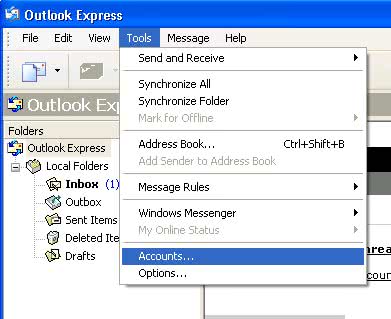
1) First select "Tools" menu, then item "Accounts...".
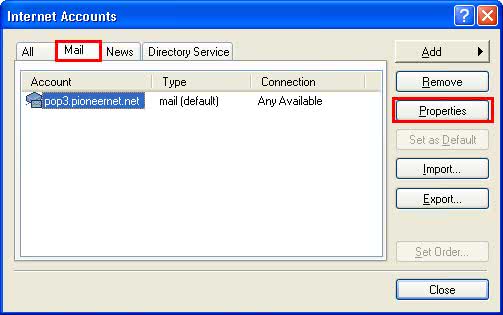 2) Next, a window of accounts appears. Select the "Mail" tab and then select your mail account and press the "Properties" button.
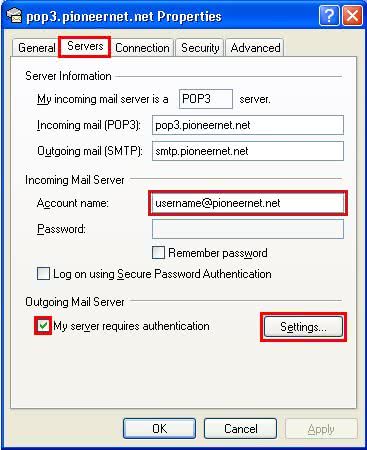
3) Select the "Servers" tab on the next window that appears.
Under "Incoming Mail Server" set "Account name:" to include @pioneernet.net (username@pioneernet.net). Select "My server requires authentication" and press the "Settings" button.
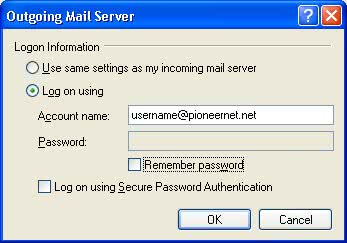
4) A window label "Outgoing Mail Server" will pop up next. Check "Log
on using" and put in your username@pioneernet.net and Password.
Do not select "Log on using Secure Password Authentication". Hit "OK"
to save these changes.
5) Click "OK" again to save all changes.
If you have are still having difficulty setting up your email client after following this guide please email or call support for assistance.
Call Customer Support
- Toll Free 1-877-638-9277
- Local (425) 869-5411
- More Contact Information
Customer Support Hours
- Monday - Friday
6:00AM to 8:00PM PST - Saturday & Sunday
9:00AM to 6:00PM PST

